weclapp integration: orders from e-mail via the API
Orders from e-mail, PDF and WhatsApp as sales orders in weclapp: Onshop creates the draft, you confirm, the handover runs through the weclapp API.
Between the mailbox and weclapp
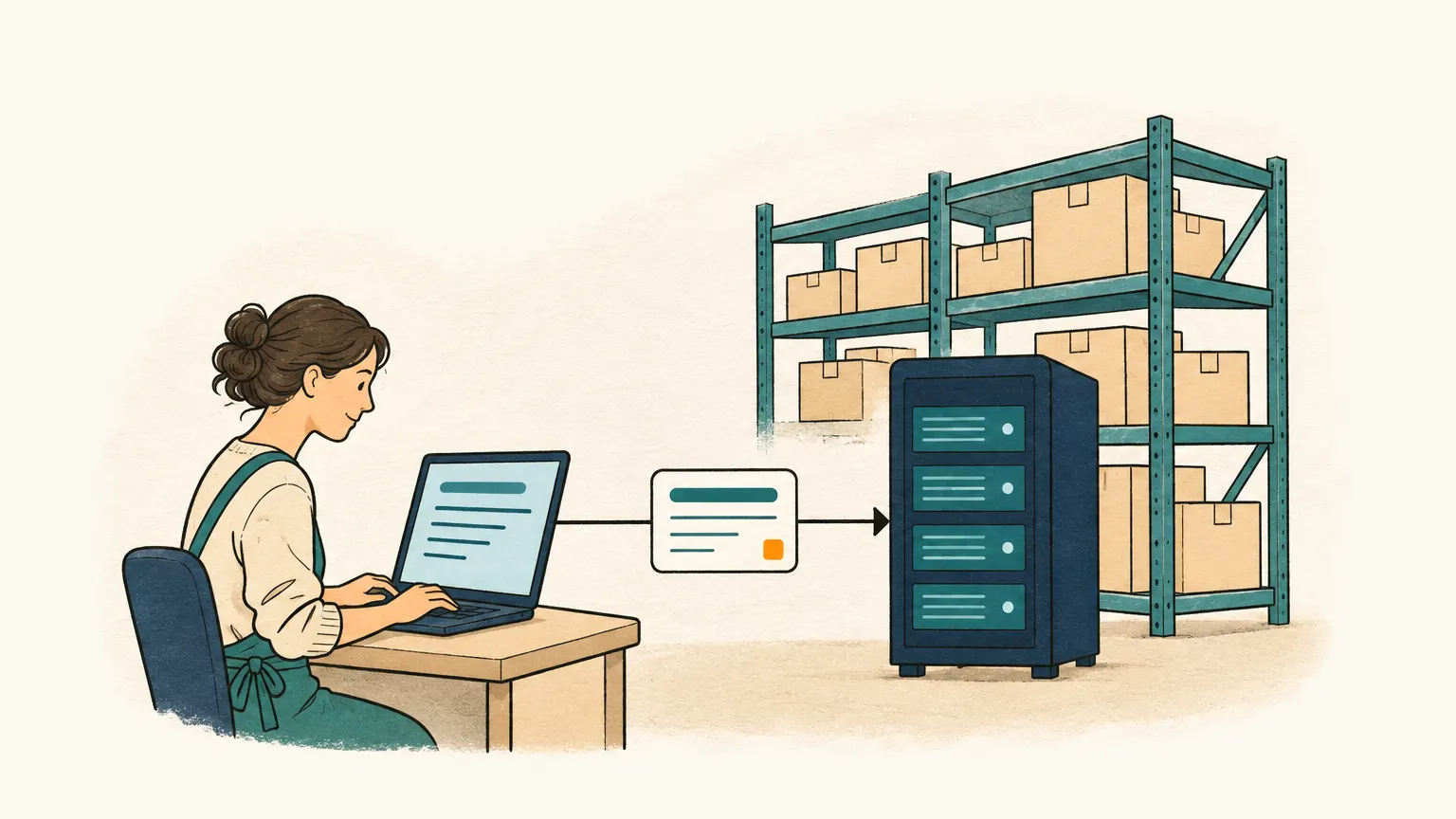
Many businesses run quotes, orders, stock and invoices in weclapp. The orders themselves, however, often arrive by other routes. A regular customer writes “As usual, 6 cartons this time”, another sends their order form as a PDF, a tradesman photographs his note and sends the picture on WhatsApp. In sales support, someone reads each of these messages, looks up customer and items in weclapp and creates the order by hand.
Onshop takes over this step. It turns the message into a draft order that your team reviews and confirms, and hands the confirmed order to weclapp as a sales order through the weclapp API. weclapp remains your system for everything that follows.
From mailbox to checked order
Onshop checks your order mailbox regularly, recognises orders and creates a draft with customer and lines. It reads the e-mail text, PDF attachments, scans and photos, and transcribes voice messages first. Onshop recognises the customer by sender address, company domain or name and matches the lines to your catalogue by item number or description. Anything unclear stays marked, and for each line you see the passage in the original.
If something is missing, such as a quantity, Onshop prepares a question to the customer that you review and send. Only a person can confirm an order. More about recognition on AI order entry.
How to connect weclapp
You set up the connection in Onshop under “Integrations”. There you enter the address of your weclapp, for example company.weclapp.com, and an API token. You create the token in weclapp under “My settings” in the API section. After saving, Onshop checks the connection right away with a request to weclapp and shows the result.
Onshop stores the token encrypted and never displays it again, not even to you. To replace it, simply enter a new one. “Disconnect” removes the connection; orders already transferred stay in weclapp.
What happens during the handover
On a confirmed order you get the button “Transfer to weclapp”. Onshop then looks up the customer in weclapp by customer number and each item by item number and creates a sales order: with order date, currency, the lines with quantity and unit price, and your order note as the description. If a customer orders in cartons and a carton holds 12 pieces in your setup, Onshop converts quantity and price to the item’s base unit.
The “commission” field contains “Onshop” and the Onshop order number. That is how Onshop recognises whether the order is already in weclapp. If a transfer breaks off, for instance because weclapp was briefly unreachable, you can safely repeat it without creating a second order. After the transfer, the order in Onshop shows the number of the weclapp order.
For the handover to work, the order needs a customer with a customer number, and every line must be linked to an item with an item number. If something is missing, Onshop sends nothing to weclapp and tells you what is missing. If weclapp cannot find a customer or item, you see it on the order with the line number and can transfer again after correcting it. To keep the numbers in line, it is best to upload products and customers to Onshop as an Excel or CSV export from weclapp.
The status comes back from weclapp
Your team also sees in Onshop what happens to the order in weclapp. Onshop regularly checks the status of transferred orders and shows it on the order. Once the order documents are printed, the order becomes “In progress” in Onshop; once it is shipped or invoiced, “Shipped”; and once it is closed in weclapp, “Delivered”. The status only ever moves forward. If someone has already changed the status in Onshop by hand, that change takes precedence.
What doesn’t work (yet)
You start the handover yourself for each order; Onshop does not yet transfer automatically on confirmation. Onshop works with weclapp in the cloud at an address on weclapp.com; a self-hosted installation on another server cannot be connected. Onshop is connected to one inventory system at a time: while weclapp is connected, Business Central cannot be connected, and vice versa.
If you cancel an order in weclapp, it stays as it is in Onshop, and an order cancelled in Onshop is not cancelled in weclapp. Onshop does not yet pull products, customers and past orders from weclapp through the API; you upload them as a file. Importing them directly from weclapp is planned. The integration follows weclapp’s REST API documentation. Should your weclapp behave differently on some point, we adapt the integration.
Other inventory systems
For Microsoft Dynamics 365 Business Central there is also a direct handover, see Business Central integration. With JTL-Wawi, Onshop works through an import file, see JTL-Wawi integration. How Onshop works alongside an inventory system is described on Inventory management system.