JTL-Wawi integration: e-mail orders via JTL-Ameise
Orders from e-mail, PDF and WhatsApp as an import file for JTL-Ameise: Onshop prepares the orders, JTL-Wawi takes them in through an import.
The shop runs, the e-mails pile up
If you work with JTL-Wawi, orders from your online shop and marketplaces are usually under control. They come in through the shop connection, with customer number, item number and quantity. Business customers who never order in the shop are a different story. One writes on Monday morning “Same as last week, just 4 cartons more”, the next attaches a PDF from their own ERP, a third sends a photo of a handwritten list on WhatsApp. Someone in sales support types these orders into JTL-Wawi by hand.
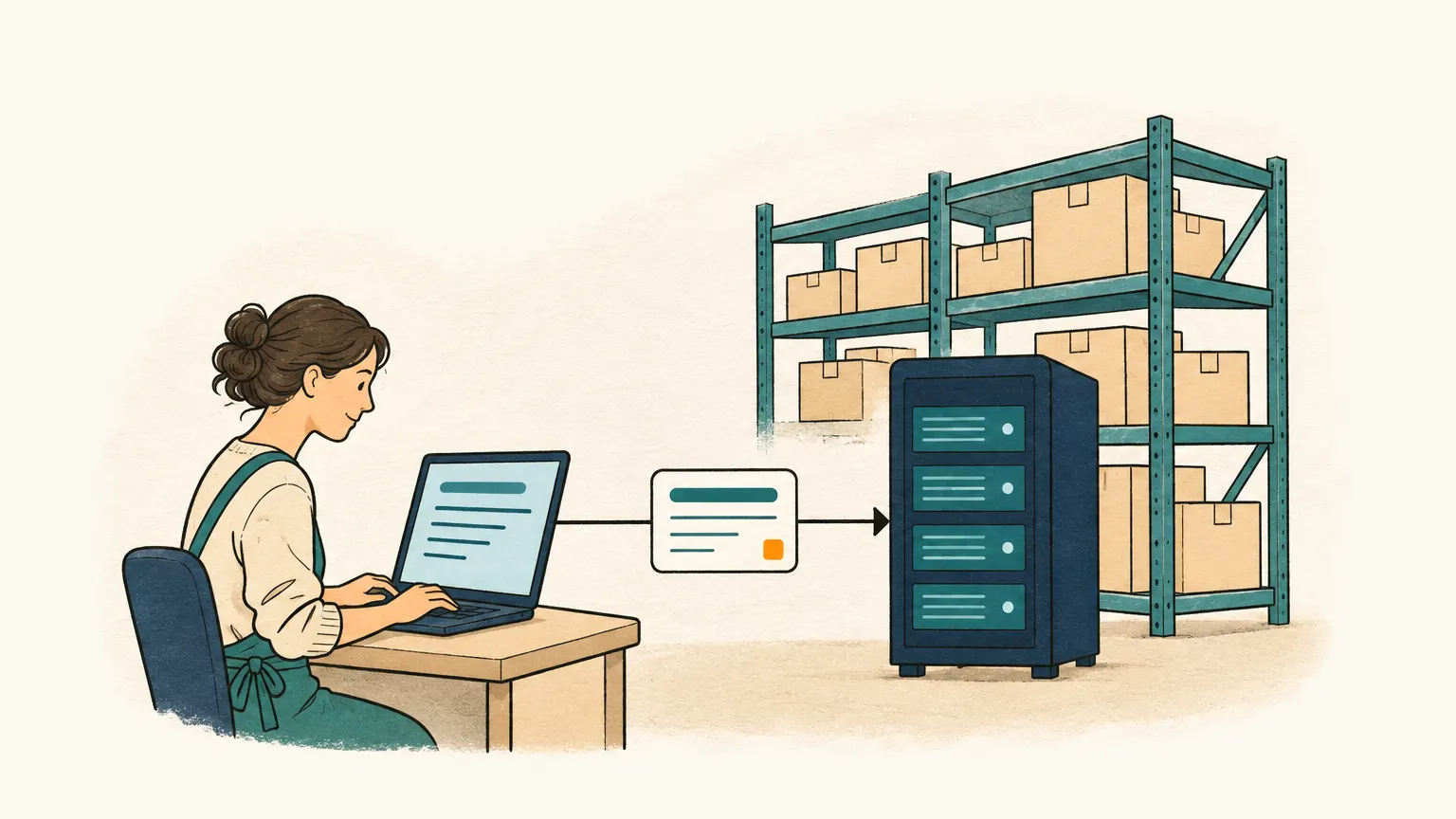
This is where Onshop comes in. It does not replace JTL-Wawi; it takes over the step before it: turning the message in your mailbox into a checked order. An import file for JTL-Ameise then brings the confirmed order into your inventory system.
What Onshop does before the import
Onshop checks your order mailbox regularly and recognises which e-mails contain orders. From each one it creates a draft order with customer and lines. It reads text in the e-mail body, PDF attachments, scans and photos alike, and transcribes voice messages first. Onshop finds the customer by sender address, company domain or name, and the lines by item number or description in your catalogue. Anything unclear stays marked, and for every line you see the passage in the original it came from.
A person on your team reviews the draft, fills in missing details and confirms it. Only confirmed orders go into the file for JTL-Wawi. How recognition works in detail and how customer data stays protected is described on AI order entry.
The import file for JTL-Ameise
On the “Export orders” page in Onshop you choose the format “JTL-Wawi (JTL-Ameise)”. Onshop then shows how many new confirmed orders with how many lines will go into the file. The file is a CSV with semicolons and decimal commas, one row per line item. The columns carry German names such as “Externe Auftragsnummer”, “Kundennummer”, “Artikelnummer”, “Menge”, “Einheit” and “Einzelpreis netto”, plus company, address, currency and the order note. The Onshop order number is in the file as the external order number, so you can find the order in JTL-Wawi later.
Onshop converts quantity and price to the item’s base unit. If a customer orders “2 Karton” and a carton holds 12 pieces in your setup, the file says 24 pieces at the unit price. That way the row matches how the item is kept in JTL-Wawi.
When you download the file, Onshop remembers which orders were in it. The next export contains only the new ones, so nothing is imported twice because someone created the file twice. If a file gets lost, you download exactly the same set again.
Only orders JTL-Wawi can match
JTL-Ameise needs keys to assign an order to the right customer and its lines to the right items. That is why Onshop only puts orders into the file whose customer has a customer number and whose lines are all linked to an item with an item number. If something is missing, the order stays out and Onshop lists it with the reason, for example “Item 3 without product”. You correct the order, and it is included in the next export.
For the numbers to match, products and customers in Onshop should carry the same numbers as in JTL-Wawi. The simplest way is to export both lists from JTL-Wawi and upload them to Onshop as an Excel or CSV file. During the upload you assign the columns, and Onshop suggests the mapping.
How the file gets into JTL-Wawi
Day to day, it takes four steps:
- In Onshop, open “Export orders”, choose “JTL-Wawi (JTL-Ameise)” and download the file with the new orders.
- In JTL-Ameise, start the order import and open the CSV file.
- The first time, map the file’s columns to the JTL-Wawi fields and save the mapping as a template.
- Use the saved template for every further import.
From then on the order moves through JTL-Wawi like any other: delivery note, shipping, invoice. You decide when to import, for instance once in the morning and once in the afternoon.
What doesn’t work (yet)
Onshop does not talk to JTL-Wawi directly or to its API. The route is always the file and JTL-Ameise, and you start the import yourself. Onshop does not learn what happens to the order in JTL-Wawi afterwards: shipping or invoicing don’t show up there as a status, so you update the status in Onshop by hand if you need it. If you cancel an order in Onshop after it was exported, that does not appear in a new file. You then cancel the order in JTL-Wawi as well.
The file’s columns follow JTL’s documentation and have descriptive names to make mapping in JTL-Ameise easy. Check a few orders in JTL-Wawi after the first import before you save the template for everyday use. Onshop does not pull products and customers from JTL-Wawi automatically; they come in through the Excel or CSV file.
Other inventory systems
If you work with weclapp or Microsoft Dynamics 365 Business Central, Onshop hands the order over directly through the interface, without a file: see weclapp integration and Business Central integration. How Onshop works alongside an inventory system is described on Inventory management system.