Business Central integration for e-mail orders
Orders from e-mail, PDF and WhatsApp as sales orders in Microsoft Dynamics 365 Business Central: Onshop captures, you confirm, the API hands over.
The sales order starts in the mailbox
Microsoft Dynamics 365 Business Central holds your items, customers, prices and stock. Your customers’ orders, however, land in the mailbox first: “Please find our order attached” with a PDF from the customer’s ERP, a few lines in the e-mail body, a photo of an order slip on WhatsApp. In sales support, someone opens each message, creates a sales order in Business Central, looks up the customer and types in one item number after another.
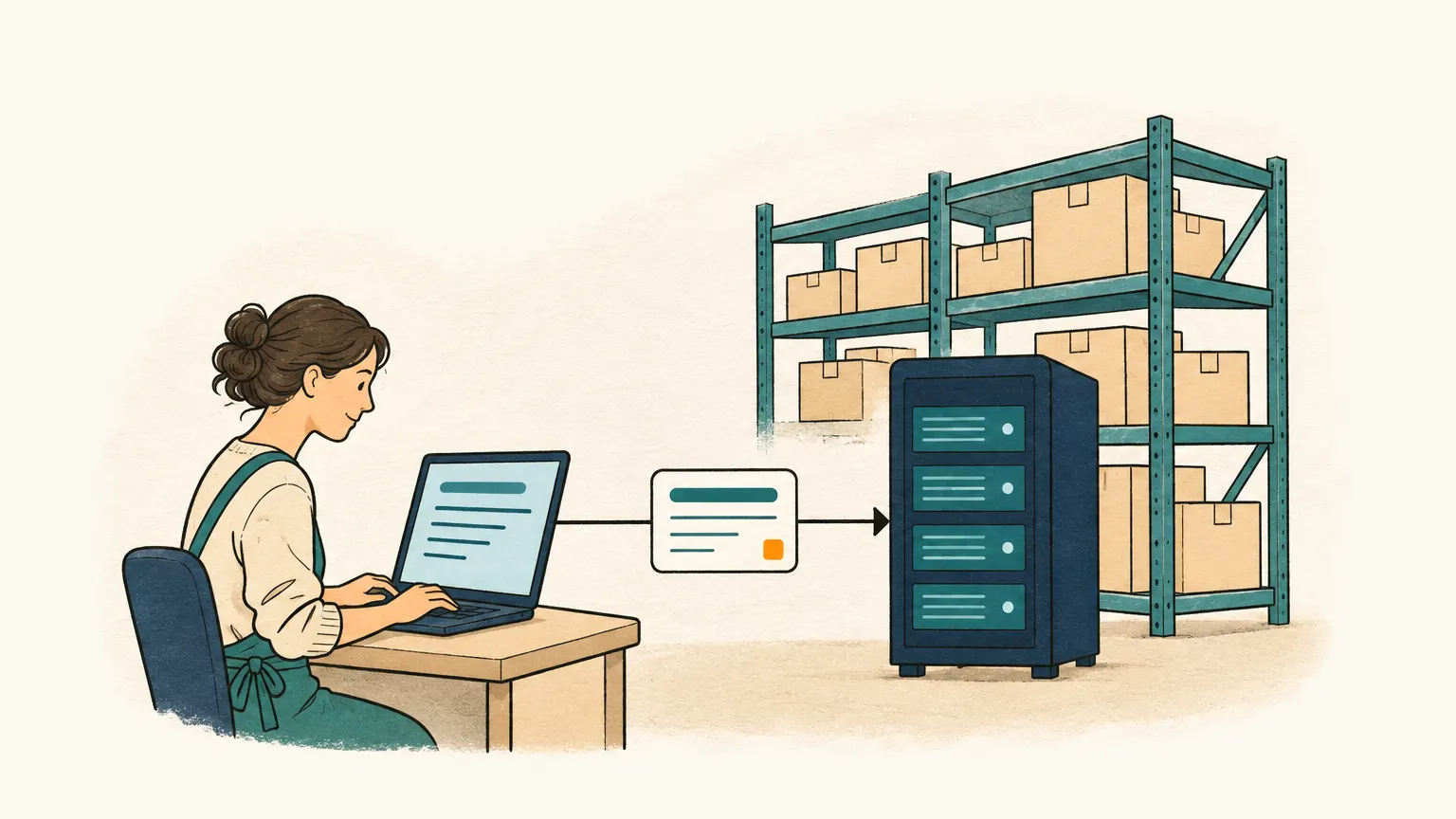
Onshop takes over order entry before Business Central. It reads the order, creates a draft that your team reviews and confirms, and creates the confirmed order as a sales order through the Business Central API. Shipping, invoicing and accounting stay in Business Central.
What Onshop does with the order
Onshop checks your order mailbox regularly and recognises orders in the e-mail text, PDF attachments, scans and photos; voice messages are transcribed first. The result is a draft with customer and lines from your catalogue. For each line Onshop shows the passage in the original, and anything unclear stays marked. Only a person on your team can confirm an order. How recognition works and how customer data stays protected is described on AI order entry.
Connecting with your Microsoft account
You set up the connection in Onshop under “Integrations” with “Connect to Business Central”. You sign in to Microsoft with the account you use in Business Central, and Onshop then works with your permissions. Onshop never sees your password; it manages the Microsoft sign-in for you. Then you choose the environment, usually “Production”, and the company Onshop should work with, and Onshop checks the connection right away.
Three things are worth knowing beforehand. Business Central must have been opened at least once in your company. If Microsoft asks for admin approval during sign-in, an administrator signs in first and ticks “Consent on behalf of your organization”; after that all employees can connect. And a Team Member licence cannot create sales orders in Business Central.
For companies where employees may not approve apps, or where access should not be tied to one person, there is a second route without a user account. A global administrator grants consent, creates a card for Onshop on the “Microsoft Entra Applications” page in Business Central, assigns the permission sets Onshop lists and enables it. Onshop then works as its own user in Business Central.
Bringing over items, customers and units
To match orders to your catalogue, Onshop needs your items and customers. With “Import data from Business Central”, Onshop fetches items with number, description, unit price and base unit, and customers with address and contact persons from the chosen company. Optionally, open sales orders and posted invoices come along as order history. Onshop updates existing entries by item and customer number and deletes nothing. Items and customers blocked in Business Central are skipped. You can repeat the import at any time to bring things up to date.
For units, Onshop looks for the Business Central unit with the same international code, so pieces become STÜCK in a German company, for example. If that doesn’t fit, you decide under “Units” which Business Central unit stands for which Onshop unit.
What happens during the handover
A confirmed order shows “Transfer to Business Central”. Onshop looks up the customer by customer number and the items by item number and creates a sales order with order date, requested delivery date, currency and the lines with quantity and unit. Onshop does not transfer prices: Business Central calculates with the prices from your own master data. Afterwards the order in Onshop shows the Business Central order number and the total net and gross, and points out if it differs from the total in Onshop.
The external document number in the sales order is “Onshop” plus the Onshop order number. That is how Onshop recognises an order already created, so an interrupted transfer can safely be repeated. If Business Central doesn’t know an item, or the item doesn’t have the unit, you see that on the order with the line number.
The status comes back from Business Central
Onshop regularly checks the status of transferred orders in Business Central and shows it on the order: open, released, partially shipped, shipped, or shipped and invoiced. Once the order is released or partially shipped, it becomes “In progress” in Onshop; once everything is shipped, “Shipped”. A person sets “Delivered” in Onshop, because Business Central doesn’t know that status. If someone deletes the sales order in Business Central, Onshop shows that and stops checking.
What doesn’t work (yet)
Onshop connects to Business Central Online; on-premises installations cannot be connected. It works with one company and with one inventory system at a time: while Business Central is connected, weclapp cannot be connected. You start the handover yourself for each order; Onshop does not yet transfer automatically on confirmation. The order note does not go to Business Central, and an order cancelled in Onshop is not cancelled there.
Onshop cannot read in advance which units a single item knows in Business Central; Business Central checks that only during the transfer. The data import does not bring over VAT rates, and new customers get German as their language because the interface doesn’t provide the customer’s language. Orders changed in Business Central after the import are not yet synchronised again; that is planned. We have run the handover, the status checks and the data import with the CRONUS demo company in Business Central Online.
Other inventory systems
weclapp also gets a direct handover, see weclapp integration; for JTL-Wawi there is an import file, see JTL-Wawi integration. How Onshop works alongside an inventory system is described on Inventory management system.