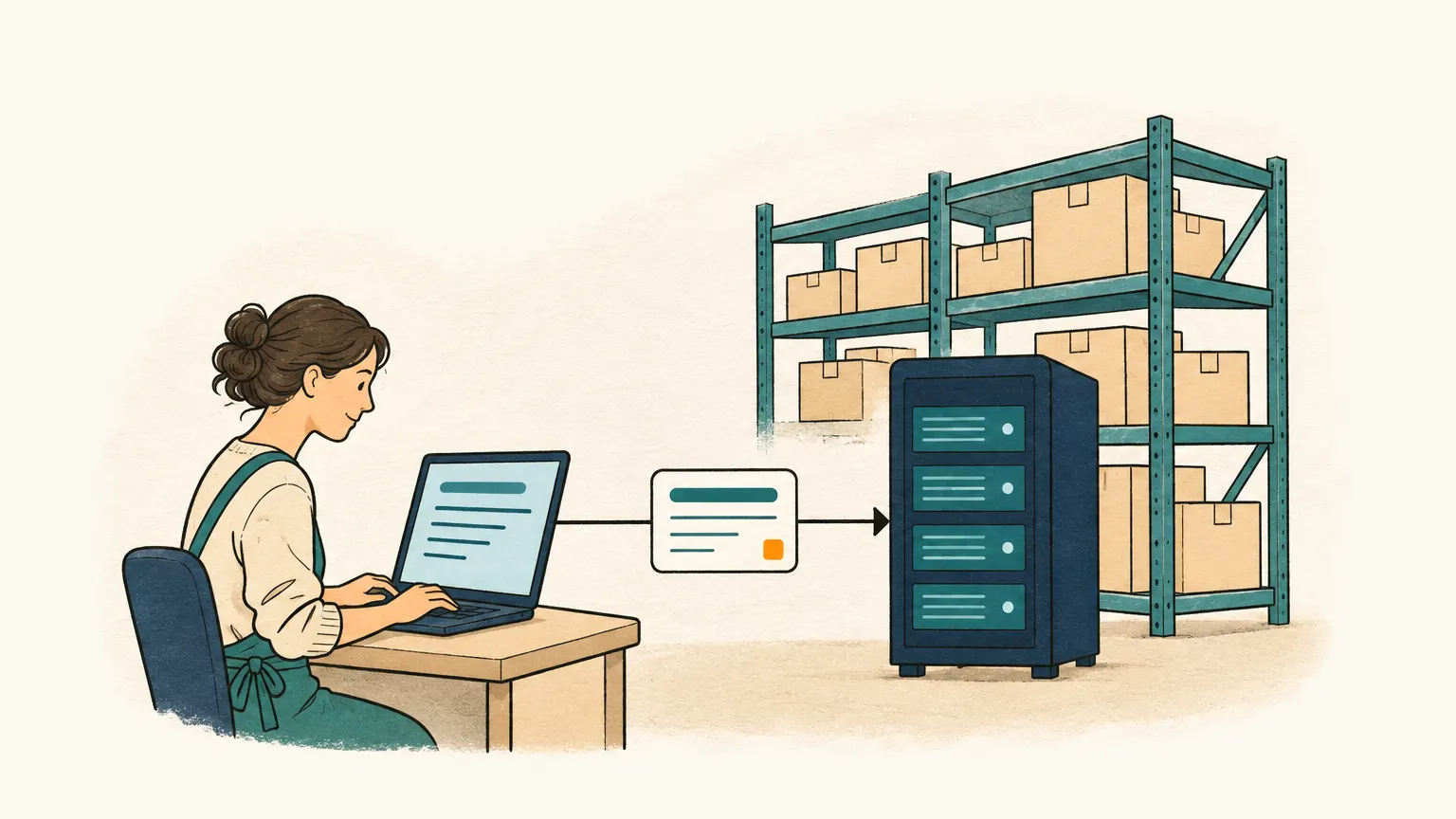
Capture orders from PDF, scans and photos
PDF purchase orders, scanned order forms and photos of order lists become draft orders. Text recognition runs on our own servers.
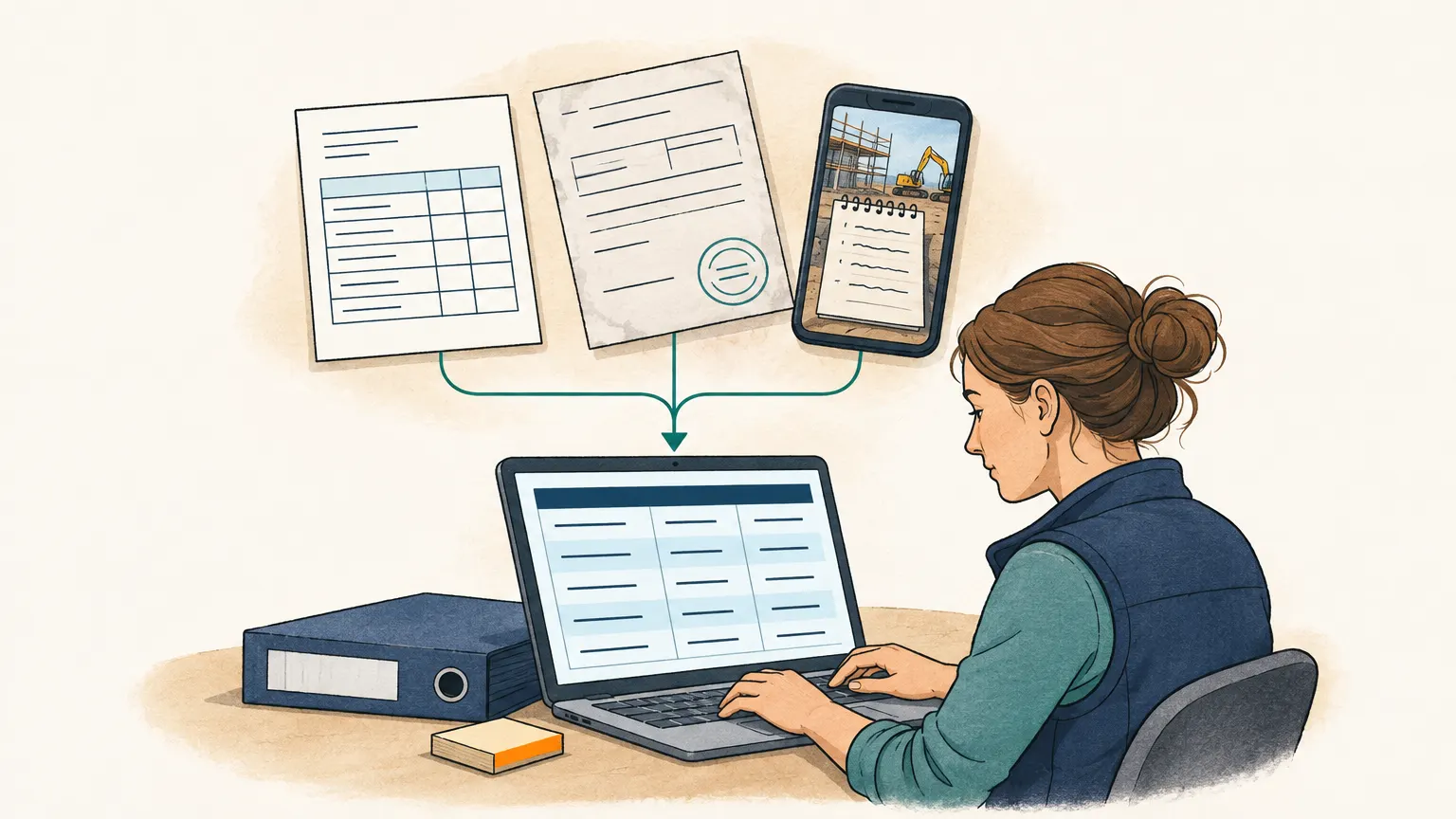
“Please find our order attached”
Many order e-mails contain nothing more than this sentence. The actual order resides in the attachment, which varies from customer to customer. One client might send a clean PDF generated by their ERP, featuring a header, an order number, and a table with their own product names. Another sends a slightly skewed scan of a filled-in order form with a stamp covering the third line. A third customer simply photographs a list written by their foreman on a notepad.
For sales support, this is the most tedious part of order entry. While text can be copied from a PDF, scans and photos require manual typing. This means entering data line by line, with the attachment on one half of the screen and the inventory system on the other.
How Onshop reads an attachment
Onshop processes each attachment based on its format. A PDF with a text layer—meaning a document generated by a program—is read directly from the file, page by page. This ensures the text is exactly what the customer’s system produced, without any recognition errors.
Photos, scans, and PDFs without a text layer are processed by our text recognition (OCR). This runs on our own servers rather than a cloud provider. The OCR also identifies tables, keeping the cells of a single order line together so that the product, quantity, and unit remain linked. For forms, this is what makes the difference between a usable draft and a random heap of numbers.
Many PDF files are a mix of formats. A supplier might send a PDF order that includes scanned drawings or signed pages. Onshop decides how to handle this page by page: digital pages are read directly, while pages that are essentially images go to text recognition. We do not use text that a scanner has already embedded into a PDF, as it is often less accurate than our own recognition.
Text recognition takes a few minutes. During this time, the e-mail remains in your inbox, marked “waiting for text recognition”. Once finished, Onshop creates the draft order like any other.
Every line with its source
In the draft order, you will see the text Onshop extracted from the attachment next to the order lines. Every line is linked to its origin in the document, and that specific line is highlighted. If a quantity seems incorrect, you can immediately see what the attachment said and compare it with the original if you are in doubt.
What Onshop tells you openly
Not every attachment can be processed. If a PDF is encrypted or damaged, or if a photo contains no legible text, the order and the attachment will state that it was not read and explain why. This allows you to find out before the customer asks about their delivery.
Very long PDF files are read up to a fixed amount of text per request. If not all pages fit, whole pages are read in sequence, and any remaining pages are noted on the attachment, such as “pages 3–5 not read”. In orders, the lines are almost always at the front and terms and appendices at the back. If a line does sit on a page that was not read, you know where to look.
Text recognition can read handwriting if it is clear. However, it can make mistakes with scrawled writing, crossed-out lines, or numbers in the margin, just as a person would. You should therefore check lines from handwritten lists with particular care. The highlighted source next to each line assists with this process.
Data protection for attachments
Photos, scans, and PDF files never leave our servers. Only the recognised text is sent to the AI model that creates the draft order. Before this happens, names, addresses, phone numbers, and bank details are replaced with placeholders. You can find a detailed description of this process under AI and data protection.