Onshop in Claude and ChatGPT: AI assistants via MCP
Connect Claude, ChatGPT or Claude Code to Onshop: the assistant finds orders, customers and products and creates draft orders. Confirming stays with you.
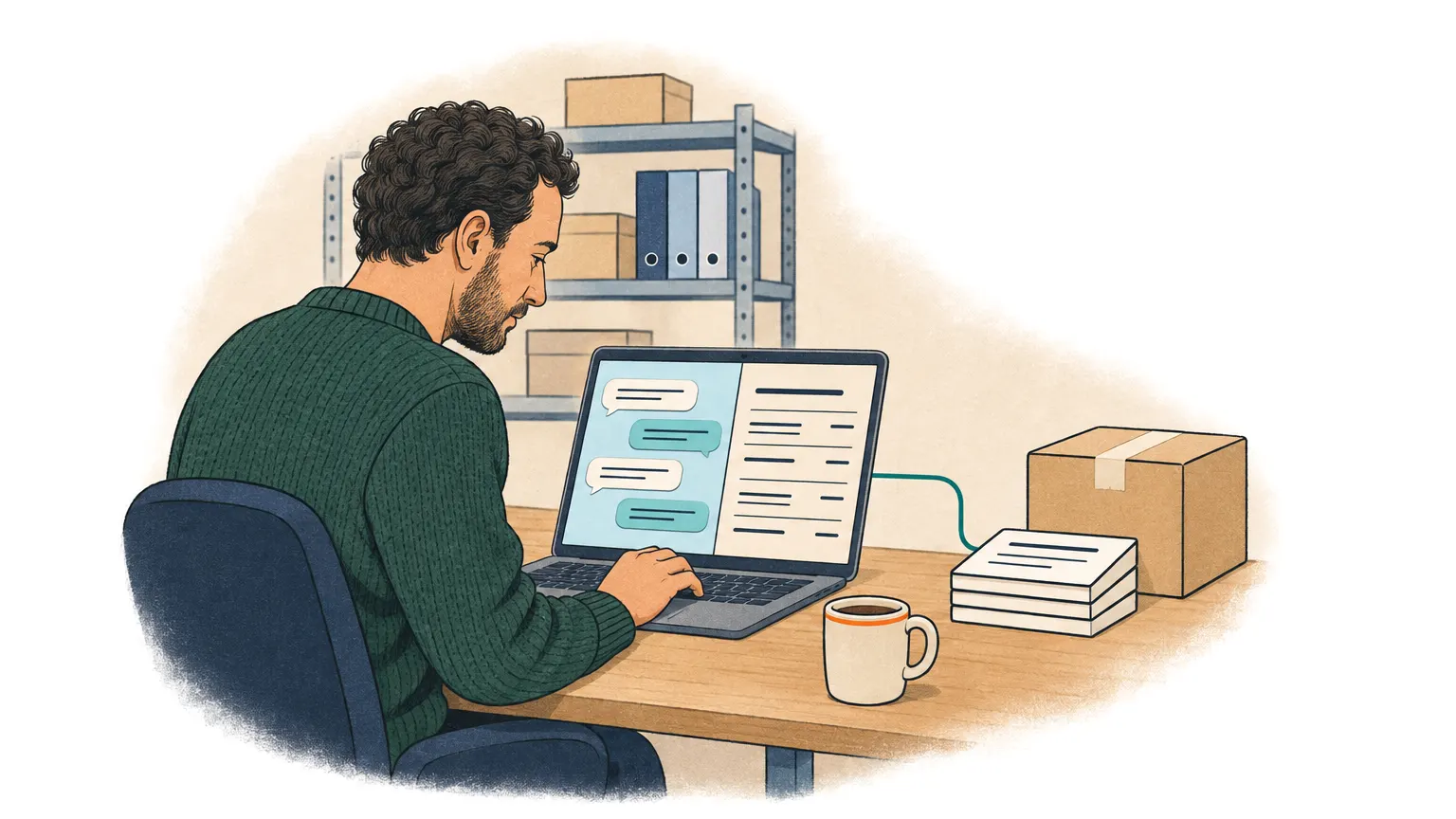
One question, without switching applications
Tuesday morning, a regular customer calls: “What did we order from you in March? The same again, just double the wall plugs.” Your colleague in sales support already has Claude open to draft a quote. Instead of searching through the customer’s history in Onshop, she asks the assistant. It locates the March order, lists the items, and, upon request, creates a new draft order with twice the wall plugs. She then opens that draft in Onshop, reviews it, and confirms the order.
This is the purpose of the AI assistant connection. Many teams use Claude or ChatGPT for research, spreadsheets, and writing. Through the Model Context Protocol (MCP), an open standard that links AI assistants to applications, the assistant can access your Onshop data. It uses your account and only the permissions you grant during the connection process.
What the assistant may do
With the “Read data” permission, the assistant can search and read orders, customers with their contacts, products and prices. It can calculate the cost of an order for a specific customer and read incoming messages from WhatsApp and e-mail, including the text, transcripts of voice messages, and recognised text from attachments. For draft orders, it sees the same review notes you see, such as a line without a matched product or a missing delivery address.
The second permission, “Create and edit draft orders”, allows the assistant to create new drafts and modify them while they remain in draft status. Onshop handles the product matching by description or item number — whether yours or the customer’s — just as it does for e-mail orders. These drafts are marked with the source “AI assistant” in the order list. You can disable this permission during connection so the assistant can only read data.
There is a deliberately long list of things the assistant cannot do: it cannot delete orders, confirm or cancel orders, send messages to customers, issue invoices, change settings or master data, or transfer orders to your inventory system. Those tasks remain with you and your team in Onshop. The assistant prepares the work, but a person makes the decision.
How to connect an assistant
Go to “Integrations” in Onshop to find the “AI assistants (MCP)” section, which contains your MCP server address and brief instructions. In Claude, you add this address as a custom connector; in ChatGPT, you add it as your own app in developer mode; in Claude Code, you use a single command in the terminal. Other assistants supporting MCP via OAuth sign-in work similarly. The provider determines which of their plans allow custom connectors.
The assistant then opens the Onshop sign-in page. You log in with your usual account and see which assistant is requesting access and which permissions it requires. The connection is only established once you click “Allow”. You never provide a password or copy a key to the assistant.
This connection is included in every plan, including Free.
Your data at the assistant’s provider
The rules here differ from those used in order entry. When Onshop itself asks an AI, it first replaces phone numbers, addresses, and names with placeholders. A connected assistant, however, receives data exactly as it is stored in Onshop, including orders, customer names, and addresses. You choose which provider to trust with this information, and the provider processes it according to its own terms. Check if your provider account is suitable for business data and if a data processing agreement is available. Onshop states this clearly in the “AI assistants” section and during the connection process.
You keep track of connections
Every user of your account can see all active connections in the “AI assistants” section: which assistant is connected, who set it up, the permissions granted, and when it last requested data. Clicking “Disconnect” ends access immediately. Each connection lasts 90 days at most, after which you must connect the assistant again. If a user is deleted, locked, or deactivated, their assistants lose access automatically.
We state two limits openly. An assistant will not notify you when a new order arrives; it only acts when you prompt it. Additionally, after a long period of inactivity, the first request may take a few seconds while Onshop starts your instance.
How Onshop protects your customers’ data during its own order entry is described in AI and data protection in order entry.